I tried creating the body before this using free hand and have realized using the blueprint will allow me to get the proportions the correct sizes. Here was my first attempt.
Tuesday, 25 October 2016
Star Destroyer Part 1
I fist used a blueprint to get the different views required to make an accurate representation of the ship in Maya.
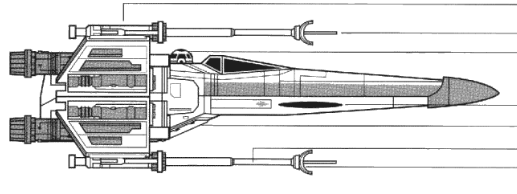
X-Wing Creation Part 1
when creating my X-Wing I first found a blueprint and split it up into top view, side view and front view to be able to accurately create the model. I found it hard to scale the schematics to the correct sizes but I was able to align them in the end.
3D Star Wars Animation StoryBoards
At the start of producing my animation I have made storyboards detailing what will happen in my animation scene by scene.
F16 Exercise
This exercise was to model an F16 fighter using Maya and images as references in Maya to get the right scale and shape of the ship.
This is the final model of the F16. I did this by first creating a Cylinder and adding several different vertexes using the multi-cut tool and then I proceeded to use the different views (Side,Top and front) to move the different edges to align with the schematics. I then extruded several pieces out and lined the edges with the wings on the schematics I then used the connect tool to then pull the edge down to create the streamlined angle of the wings. I then extruded the the front faces of the cylinder multiple times each time moving the top 4 edges down to create the angled nose of the fighter. I then used the smooth tool to create the smooth surface of the nose cone. I found this at first hard to accomplish as extruding the nose was hard to keep inline with the schematics and to then create the underneath the cockpit which is flat and connects up to the nose, as it kept having faces that would move when I moved one of the nose faces I fixed this by deleting several faces and then filling the whole to create one face.
Derelict Map Exercise
This exercise was to draw out a plan for a derelict area and then create it using the tools in Maya.
This drawing shows the objects that will be in my map and where they will be placed.
This Is the finished map. I made this by using the multi-cut tool and connect tool to add more edges and vertexes to my objects I then used the extrude tool to push back and pull out different parts for example the windows on the buildings are pushed backwards to make the window bars, and the rings around the barrels are pulled out. I also used the bridge to to create the plane carriage. I did this by first deleting half of the each end faces and then selecting each edge and selecting the bridge tool which generates the surface in between them. I found this easy to do without any problems.
This drawing shows the objects that will be in my map and where they will be placed.
This Is the finished map. I made this by using the multi-cut tool and connect tool to add more edges and vertexes to my objects I then used the extrude tool to push back and pull out different parts for example the windows on the buildings are pushed backwards to make the window bars, and the rings around the barrels are pulled out. I also used the bridge to to create the plane carriage. I did this by first deleting half of the each end faces and then selecting each edge and selecting the bridge tool which generates the surface in between them. I found this easy to do without any problems.
3D Modelling Steering Wheel Exercise
In this exercise I had to create a steering wheel for a ship. I did this by creating multiple cylinders and moving them to the right player then adding edges and manipulating them through rotation, scaling and moving them to get a handle shape.
This exercise has shown me how to create more advanced shapes by manipulating the individual vertices of my models and I have seen that this will be really useful in creating my models as they will allow me to add the detail to the smallest parts of my ships. I found this easy to do without any hindrance.
Subscribe to:
Posts (Atom)